← Back to the MP3 to MIDI converter
How do you turn audio into MIDI in Studio One?
Make the MIDI file first, then open that file in Studio One. The order holds: the in-DAW route is edition-dependent. Melodyne can drag its notes onto an instrument track — an official route — but exporting them as a MIDI file needs assistant or above; essential has no Audio-to-MIDI. A .mid over roughly 50 KB dragged into Studio One opens as a new song, not an import. Ours is Type 1, which Studio One accepts.
The route that works on any version
Four steps. None of them depend on a menu that may have moved since the tutorial you found was written.
- Convert the audio in the browser. Drop the file on the converter, press Convert to MIDI, press Download .mid. It runs on your machine; nothing is uploaded.
- Keep the file. A
.midis small: kilobytes rather than megabytes, because a note is only a few bytes of event data. It is also the one artefact that opens in every program that reads MIDI. - Bring it into Studio One the way you bring in any MIDI file. The notes arrive as editable MIDI events, ready for whatever instrument you put on the track.
- Fix what the detector got wrong before you build anything on top of it. Slides and vibrato are the usual casualties, and the next section says why.
The name on the box is not the name in the tutorials
Here is something worth knowing before you follow any written guide. On 17 November 2026, the Studio One product address on PreSonus's site returned a 404, and the product path that still resolved landed on a page titled Fender Studio Pro instead. That page refers to version 8.2 and to an edition called Studio Pro+.
That reads like a rebrand. To be precise: we are reporting what those addresses did on that date, not an announcement we read somewhere. The practical point stands either way. The product you are searching for may be sold under a name your search results do not use yet, and menu paths, shortcut lists and screenshots written for earlier versions can describe an interface that no longer exists. That is exactly why this page gives you the file route and not a click path — a wrong path costs you twenty minutes, and we would rather not guess.
What is actually inside the file you downloaded
A Standard MIDI File is a container, and it is a small one. A header chunk declares the format, the number of tracks and the timing division. Then each track holds a stream of events: note on with a note number and a velocity, note off, a tempo value, an instrument change. Timing is counted in ticks, not seconds.
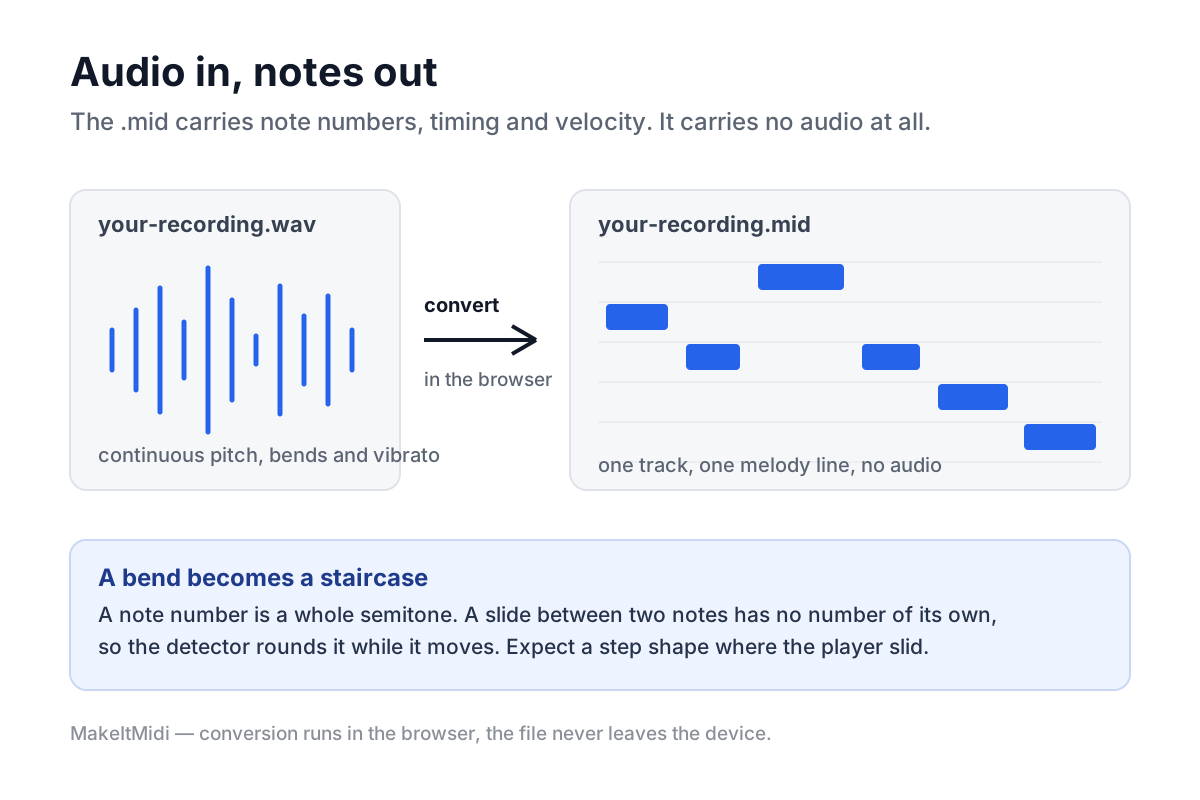
Our converter writes a single track holding a single melody line. That is why the file opens as one part rather than an arrangement of parts. It also explains the thing people find surprising: there is no audio in there. No recording, no timbre, no reverb tail. The file says play this number at this moment with this force, and the instrument you load decides what that sounds like.
Why the notes drift away from the recording
Pitch detection reduces a continuous signal to a sequence of whole semitones. Anything that lives between two semitones has to be rounded, and rounding is where the character of a performance gets lost.
Bends and slides are the clearest case. A guitarist pushing a string, a singer sliding up to a note, a cellist shifting position — the fundamental moves continuously while the detector keeps assigning the nearest semitone. What comes out is a staircase where the player drew a ramp.
Vibrato gets hit differently. A singer holding one note while the pitch oscillates several times a second can be read as a run of short separate notes rather than one held note. The rhythm looks wrong because the file now contains note changes the performer never intended.
Then there is the octave problem, which is worth the arithmetic. A just-intonation major triad sits at frequency ratios 4:5:6. Take C4 at 261.63 Hz: the E is 327.03 Hz and the G is 392.44 Hz. Divide each by its ratio and all three give 65.41 Hz — the same number three times over. A detector looking for a repeating period sees that shared value and can report 65.41 Hz, which is roughly C2, two octaves below the lowest note anyone played. One chord, one phantom bass note.
That value is not a coincidence and it is not a rounding artefact. 65.41 Hz is C4 divided by exactly four, and the three partials only land on it because 261.63 over 4, 327.03 over 5 and 392.44 over 6 are the same number. The detector has no idea it is looking at a chord. It finds a period that repeats and reports the note that period belongs to, which is why the error comes back as a clean octave rather than a smear.
Now move the same chord to equal temperament and watch the alignment break. The E becomes 329.63 Hz, and 329.63 divided by 5 gives 65.93 Hz — about 0.8 per cent away from the other two. The three partials no longer share a period, so the phantom note weakens or fails to appear at all. If you have wondered why some chords produce a mystery bass line and others do not, that gap is the reason.
The same tuning gap shows up in a smaller way. The just E is about 13.7 cents flatter than the equal temperament E, and that difference is real playing, not error. A detector with semitone slots has nowhere to put it.
None of this is a reason to abandon the conversion. It is a reason to pick a clean, single-line source, to check the result against the waveform before you trust it, and to expect to spend a few minutes on any passage where the player slid rather than stepped.