← Back to the MP3 to MIDI converter
How do I import a MIDI file into Ableton Live and fix wrong notes?
Drop the .mid onto a MIDI track, or use File › Import MIDI File, and it opens as one editable clip — then correct any notes that came out off-pitch by dragging them in the piano roll, because the converter exports a single monophonic melody line where bends and vibrato round to the nearest semitone.
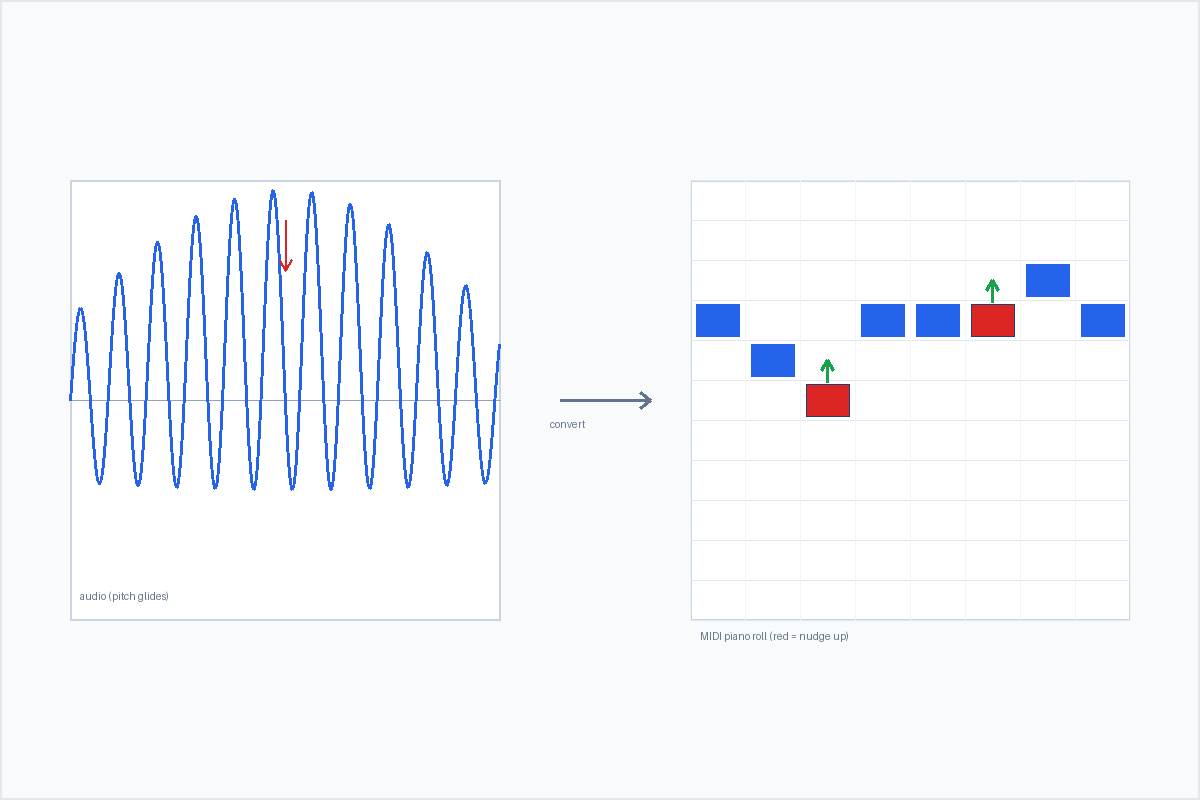
How to get the MIDI into Ableton Live
There are two ways, and both land the file as a normal MIDI clip you can edit:
- Drag it in. Drag the
.midfile from your file browser onto an empty MIDI track in the session. Ableton creates a MIDI clip from it. - Import it. Use File › Import MIDI File and pick the file. The exact label and shortcut vary a little by Live version, so check Ableton's own manual for the one you run — the menu action itself is the stable part.
Because the file you exported is a Standard MIDI File (SMF) format 0, single track, it arrives as one clip on one track. It is not split by instrument, because the converter only ever wrote one melodic line. That is expected, not a broken import.
What the clip actually contains
The clip holds the detected melody — one voice, 480 ticks per quarter note, 120 BPM. It is the top line the pitch detector followed, not a separated arrangement. On a clean, single-line source (a vocal, a synth lead, a solo instrument) that line is usually close to the performance. On a dense mix or a chord-heavy passage, the other voices the detector could not follow are simply absent.
This is a pitch-detection limit, not an Ableton limitation and not a converter bug. No accuracy percentage is claimed anywhere on this site, because the honest answer is that the result depends entirely on the recording you started with. What you can rely on is the structure: a monophonic melody you can correct, transpose, re-instrument, and build on.
Fixing the notes that came out wrong
Some notes will sit a semitone or two off the line you hear. Here is why, and what to do about it.
Why a few notes are off
Real performances rarely sit on one perfectly steady pitch. Guitar bends, string bends, vocal slides, vibrato, and ornaments make the true pitch travel continuously. A pitch detector measures that movement correctly, but MIDI note numbers are whole semitones — 60, 61, 62 — so each analysed frame gets rounded to the nearest one. During a bend the pitch passes through in-between values, and the rounded result is a short staircase of notes that sound sharp or flat. Vibrato does the same thing more gently. The note was detected; it was the rounding into semitone events that introduced the error.
This is not a sign the tool is "cheap" or broken. In producer forums the complaints about out-of-tune output attach to free browser tools and paid desktop options alike — even a tool people rate highly at around $80 still puts the correction work on you. Judge a converter by what it does with bends, not by whether it costs money.
How to fix them in the piano roll
- Double-click the clip to open it in the piano roll.
- Find the notes that look like they sit one or two semitones away from the run you expect. They usually cluster where the source bends or slides.
- Select them and drag up or down to the pitch you actually hear. For a whole run that is uniformly off, select it and transpose.
- If the timing drifts but the pitches are right, use Quantize — but leave swing or human feel alone if you want the performance to keep its character.
For a single melodic line, a dedicated pitch editor is often the faster route: in production communities the name that comes up most for one-note-at-a-time work is a pitch editor used in single-note mode (it takes practice), because it is built for nudging individual notes rather than transcribing them. Inside Live you do the same job by hand in the piano roll.
Treat bend-heavy material as a draft
On a soulful vocal, a blues guitar, or a sliding string line, no semitone-note converter hands you something perfectly in tune. The conversion gives you rhythm, contour, and a skeleton in seconds; the last pitch corrections are you. That trade is the whole point of a fast, free, no-upload converter — 80% there, not 100%.
For the full mechanism of why pitch detection drifts on moving pitches, see why MP3 to MIDI sounds out of tune.
Cut the fixing down before you convert
You cannot remove bends from a bendy performance, but you can give the detector less to fight:
- Feed a cleaner source. An isolated stem, a single take, or a direct recording removes competing voices so the line the detector follows is the one you want. Fewer wrong notes to fix later.
- Pick the right job for the source. A clean piano single line or a steady synth lead needs almost no fixing. A guitar with heavy vibrato or bends will always need a pass — that is the instrument, not the tool.
- Decide by running your own clip. The only reliable test is your actual audio, run through a trial of whatever you are comparing. Watch what it does with the bends.