← Back to the MP3 to MIDI converter
Can I play an MP3-to-MIDI file on a keyboard?
Maybe—but downloading a .mid file does not guarantee that your keyboard can open files from storage; check your exact model's manual for MIDI-file playback, or send the notes from a computer over a supported MIDI connection.
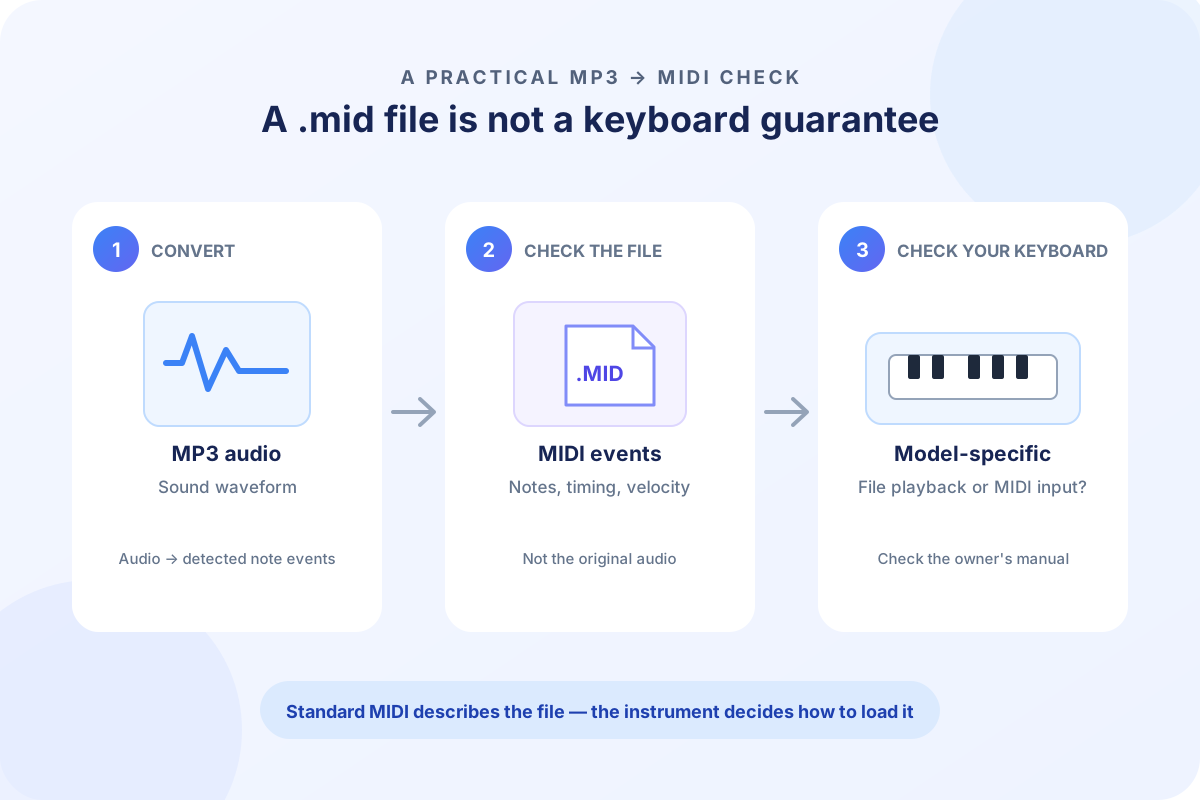
A MIDI file and a keyboard are two different parts of the setup
An MP3 is recorded sound. A Standard MIDI File is a sequence of note and timing events; it is not the original recording and it does not contain the MP3's instrument sound. A keyboard can only play those events if its own features—or another device in the setup—can read the file and turn the events into sound.
That leaves two different workflows people often call “playing MIDI on a keyboard”:
- Open a file on the instrument. The keyboard must have a MIDI-file player or file-import feature, and the file must meet that model's documented requirements. A storage port or a computer-connection port by itself does not establish file playback support.
- Send notes to the instrument from a computer. A DAW or MIDI player opens the
.midfile and sends note events over a connection the instrument supports. In this setup the computer reads the file; the keyboard supplies the sound.
So the safe short answer to “mp3 to MIDI keyboard” is: convert the audio to MIDI, then check whether your particular keyboard can load that kind of file or receive MIDI from a computer. Do not assume the keyboard can open a song just because it has USB or MIDI ports.
What this converter puts in the .mid file
The file made here is a Standard MIDI File (SMF) format 0 with one track and 480 ticks per quarter note. It is written with a 120 BPM tempo setting and stores detected note events; it does not embed the MP3, a sample of the original sound, or a recording of the keyboard's timbre. The fixed tempo is a file property, not a claim that the source song is 120 BPM. If the device or player uses the file tempo, you may need to adjust it in the receiving workflow.
Those details help you check a manual, but they do not prove compatibility. The instrument may specify a different supported file type, storage method, folder, note range, or playback workflow. The converter does not inspect your keyboard model and cannot certify that it will load a particular file.
If you only need the notes in a DAW, the simpler route is to import the MIDI file into a project. To understand exactly what information a MIDI file carries, see what format the converted MIDI file uses.
Check the exact model before copying files to it
Open the owner's manual for the exact model and look for its MIDI-file playback or song-player section. Confirm each point before trying the full song:
- Does it load MIDI files from storage? Distinguish file playback from sending and receiving live MIDI data through a computer connection.
- Which file and storage requirements apply? Check the supported Standard MIDI File type, USB drive format, folder location, file-name rules, and any size or song-length limit the manual lists.
- What will it do with the notes? Check whether the part fits the instrument's playable range and whether tempo, instrument changes, and pitch bends are supported in that playback mode.
- Test a short file first. Use a short, simple phrase you have permission to process. If it loads, listen for missing notes, octave changes, timing differences, or an unexpected sound before trying a longer arrangement.
If the manual does not describe MIDI-file playback, do not guess based on the connector label. Try the computer route only if the manual documents MIDI input for your model: open the .mid in a DAW or MIDI player, select the keyboard as the MIDI output, and use the instrument's own setup instructions. This is not the same as copying an MP3 to the keyboard.
Convert first, then decide where the MIDI will play
- Choose the MP3 or another browser-decodable audio file in the converter.
- Select Convert to MIDI, then download the resulting
.mid. - Read the keyboard manual and choose its documented file-playback or computer-MIDI workflow.
- Test a short section, then adjust the tempo or notes in a MIDI editor if needed.
Conversion is transcription, not a direct audio copy. A detected note may need editing, and a MIDI file cannot reproduce an MP3's original recording by itself. If your goal is to hear the original song on the keyboard, you need an audio-playback feature or audio file workflow supported by that specific instrument—not just an MP3-to-MIDI conversion.
Short questions, short answers
Can I put an MP3 file directly on a MIDI keyboard? Only if that exact model has an audio player that supports MP3. A MIDI converter changes the audio into note events; the resulting .mid is a different file and is not the MP3 soundtrack.
Does a USB port mean the keyboard can play a MIDI file? Not by itself. Check the manual to see whether the port is for storage/file playback or for exchanging MIDI data with a computer.
Will every keyboard read this converter's MIDI file? No universal compatibility guarantee is possible from the file extension alone. This page outputs SMF format 0; the exact model's manual determines what it can load and how.
What if my keyboard cannot open .mid files? If its manual documents MIDI input from a computer, open the file in a MIDI-capable DAW/player and send the notes through that connection. Otherwise, use a device or software workflow that the manufacturer documents.