← Back to the MP3 to MIDI converter
How do you turn a MIDI file into a WAV?
Load your .mid into a browser-based MIDI-to-WAV renderer and it plays the note events through a built-in sound set and writes the result as a 44.1 kHz WAV — the audio never leaves your device, there is no upload, no account and no install.
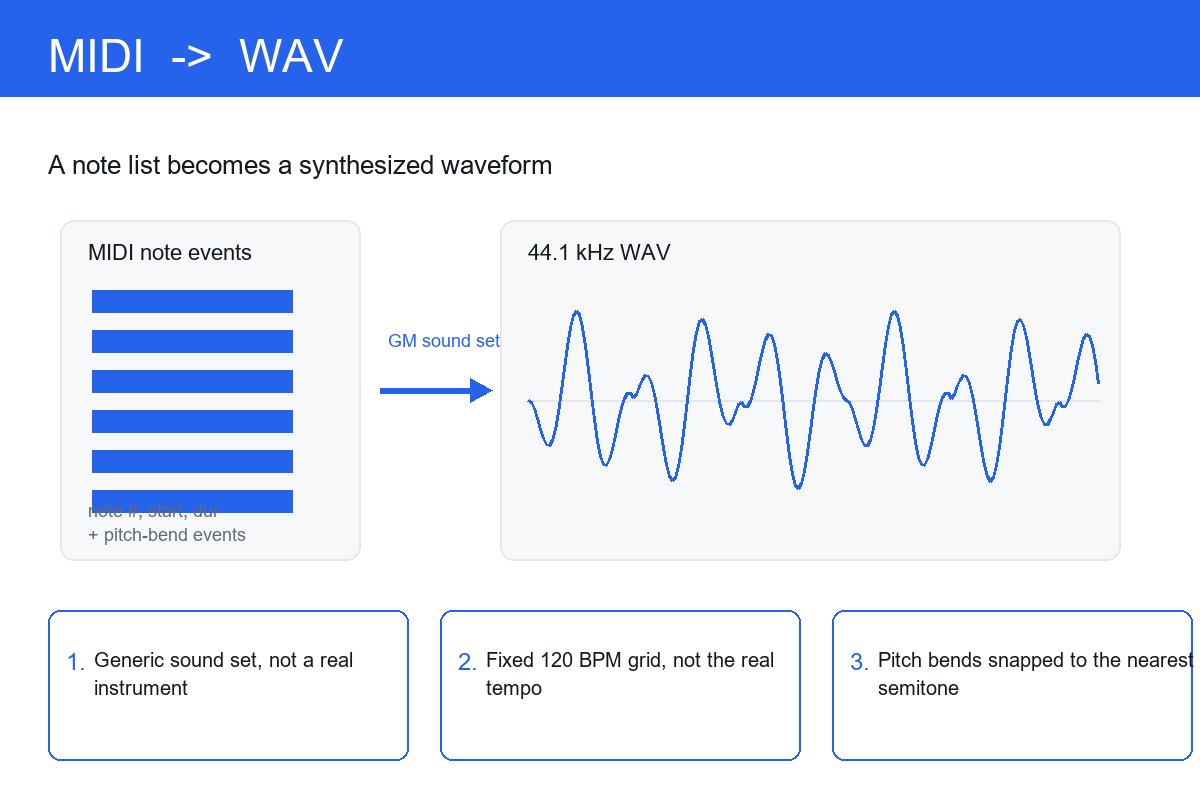
What actually happens when MIDI becomes audio
A Standard MIDI File is a list of note events — a note number, a start time and a duration for each — plus pitch-bend and control events. It holds no audio samples. Rendering, sometimes called exporting to audio, plays those events through a sound set and captures the output to a WAV. The file is written as an SMF with 480 ticks per quarter note, at 120 BPM by construction. For the container itself, see what the MIDI file format actually is.
The sound you hear is a General MIDI set, not a real instrument
General MIDI maps each note number to a preset — “piano”, “guitar”, “strings” — synthesized by the renderer’s own engine. It is the same generic patch every renderer reaches for, not a recording of a real piano or a real player. So the “piano” you hear is a synthesized piano tone, not a performance anyone gave. The file never contained the instrument’s actual sound; that is exactly why MIDI carries no audio of its own.
120 BPM is a construction value, not the song’s real tempo
The file is written at 120 BPM by default and carries no tempo map of the original performance. If the source was a slow ballad, the render still plays at 120 BPM unless something overrides it. The timing you hear is the file’s fixed grid, not a recovered fact about the music — the same reason audio to MIDI is a direction, not a recovery of the original.
Pitch bends and slides get quantized, so the render sounds hollow
MIDI note numbers are whole semitones. During a pitch bend, slide, ornament or vibrato the true pitch moves continuously between semitones, and the renderer has to land each moment on the nearest step of the grid. A glide becomes a short staircase of notes and a bend loses its curve. The result is mechanically right but emotionally flat — that is why a MIDI-to-WAV render can sound hollow or fake next to the recording. For how bends live inside the file, see how pitch bends survive in MIDI.
Why this runs in your browser, and why that matters
The render is computed on your device and is free to use in the browser. The .mid is read locally, the audio is synthesized locally, nothing is uploaded, there is no account and no login, and you download the WAV directly. The input side accepts the same formats as any audio job — MP3, WAV, OGG, M4A, FLAC for a file being read back — and the output is a 44.1 kHz WAV or MP3. Because nothing leaves your machine, the file you started with is the only thing the sound set ever sees.
How to make the render sound less synthetic
Swap the General MIDI set for a real sample library or VSTi; set the tempo to the song’s actual BPM; accept that bends are approximations and nudge the obvious steps by hand; and separate polyphonic material into stems first so each voice renders on its own track. Each of those moves replaces a generic default with a real choice — which is the whole difference between a hollow render and one that holds up.
What it cannot do
Rendering does not recover a real recording. Because MIDI holds note events rather than audio, the WAV is a re-synthesis from the note list — there is no hidden performance to reveal, only the sound set playing the notes back. That is the same limit described in why MIDI carries no audio of its own: the file was always instructions, never a waveform.