← Back to the MP3 to MIDI converter
How do I convert a YouTube video to MIDI?
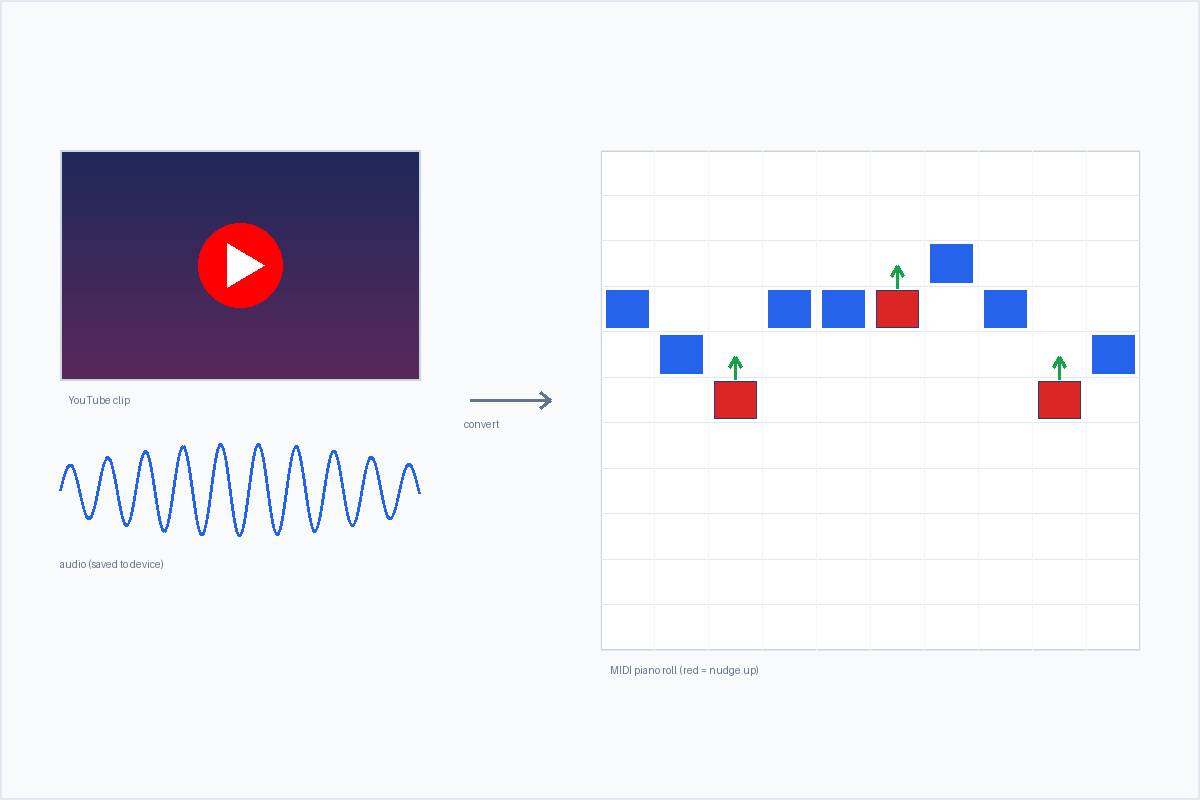
You can — but you usually can’t paste the YouTube link straight into a converter. The reliable route is to save the audio to your device first, then open it in a browser-local converter that decodes the file on your machine and gives you a .mid without uploading it or signing in. The steps and the honest caveats are below.
Key takeaways
- A YouTube link is not an audio file, so most converters — ours included — need the audio saved on your device first.
- The safe, free route is: save the clip’s audio (MP3/WAV/M4A) to your device, then convert that file in your browser.
- Our converter runs entirely on your machine: nothing is uploaded, there is no account, and you download the
.middirectly. - You get one melody line, not a separated multi-track; heavily-bent or dense audio will need a few note fixes (that is a pitch-detection limit, not a “free” limit).
Why you can’t (usually) paste the YouTube link
A YouTube URL points at a streaming video, not at an audio file your converter can read. Services that say “paste a link” are doing two jobs behind one button: they fetch the audio on their servers, then transcribe it — which is why most of them ask you to create an account and sit behind a paywall. A converter that runs in your browser, like ours, works on a file you already have, so it never has to phone home with your audio.
So the practical split is: either you hand a link to a server-based tool (account + often paid + your audio leaves your device), or you save the audio yourself and run a local tool. The second path is the one this page walks through, because it is the one that stays free, private, and login-free.
Step by step: YouTube video → MIDI
1. Save the audio to your device. Use whatever method you normally use to keep a YouTube clip’s audio locally, in MP3, WAV, or M4A. Keep the file on your computer or phone — that is the input the next step needs.
2. Open the converter and drop the file in. On the MakeItMidi converter, the audio is decoded locally with the Web Audio API. Nothing is uploaded and you do not sign in. It accepts MP3, WAV, OGG, M4A/AAC, and FLAC.
3. Convert and download the .mid. The page outputs a Standard MIDI File (SMF) format 0 — one track, 480 ticks per quarter note, 120 BPM — holding the detected melody. There is no file-length or size cap written into the page; the only limit is your device’s memory. Save it and you are done.
What you get from the converter
You get a single melodic line, not a separated stack of instruments or a full transcription. The detector follows one pitch at a time, so a clean, single-voice clip (one piano line, one sung melody) gives you a genuinely usable MIDI, while a dense, multi-instrument mix gives you the strongest line and drops the rest. That is the honest trade for a free, browser-local tool — and it is exactly what makes the file easy to finish by hand in a DAW.
Why the MIDI can sound out of tune
This is worth knowing before you convert a performance off YouTube: pitch bends, slides, vibrato and ornaments make the instantaneous frequency change continuously, so the detector has to commit each moment to one semitone and the bend gets quantised to a “wrong” note. Guitar bends, vocal slides, and blues or soul phrasing will almost always trip this up; a clean steady piano note or a stable synth lead does not. It is an essential pitch-detection limit — community reports note that even paid converters (the kind people pay around $80 for) mistrack bends too, so nobody blames the price. Choose a tool by how it handles bends, not by free vs paid. The full walkthrough is on the why MP3 to MIDI sounds out of tune page.
Paste-link AI tools vs a browser-local converter
Two routes are commonly compared, and they optimise for different things:
| Server-based “paste a link” tools | Browser-local converter (ours) | |
|---|---|---|
| Where the audio goes | Uploaded to the service’s servers | Decoded on your device, never leaves it |
| Account needed | Usually yes | No account, no sign-in |
| Cost | Often a paid plan for real output | Free |
| What it outputs | Often multi-instrument / sheet music | One melody line (SMF format 0) |
| Best when | You want a hands-off, multi-part result | You want privacy, no login, and a file to edit yourself |
Neither is “better” in the abstract — they are different jobs. If your priority is no upload, no login, and a file you fully control, the local route is the one to take.
Frequently asked questions
- Can I paste a YouTube link straight into the converter?
- No. Our converter takes an audio file (MP3/WAV/M4A/OGG/FLAC), so save the clip’s audio to your device first, then drop it in. We do not fetch videos from links.
- Is it free?
- Yes. The converter is free and needs no account. You convert in your browser and download the
.middirectly. - Will the MIDI be accurate?
- We don’t promise a percentage — accuracy depends on the source. A clean single melody converts well; a dense or heavily-bent clip needs a few note fixes. See the out-of-tune page for why.
- Is it OK to convert audio from YouTube?
- Only convert content you have the right to. Downloading from YouTube is governed by YouTube’s own terms, and we’re not lawyers — check your rights before you do it.