← Back to the MP3 to MIDI converter
Can I convert a vocal recording to MIDI?
Yes — in your browser you can turn a sung or hummed melody into a single-line .mid without uploading the audio or signing in. Expect it to hand you the melody, and expect heavily-bent vocal passages to read as slightly off, because pitch slides are a pitch-detection limit, not a “free version isn’t good enough” limit. The honest version is below.
What you get from a vocal recording
You get a single melodic line, not a separated stack of harmonies, backing vocals, or the keys behind the singer. The conversion runs entirely in your browser — the audio is decoded locally with the Web Audio API, nothing is uploaded, and you do not sign in; the conversion finishes and you download the .mid directly. The output is a Standard MIDI File (SMF) format 0: one track, 480 ticks per quarter note, 120 BPM, holding the detected melody. It accepts whatever your browser can decode — MP3, WAV, OGG, M4A/AAC, FLAC — and there is no length or file-size cap written into the page; the only limit is your device's memory.
For voice specifically, the detector follows one pitch at a time. A solo, reasonably clean sung melody is a good input — one voice, one note at a time. The moment the recording has a harmony part, backing vocals, or instruments underneath, that is polyphony the detector cannot separate: it keeps the most prominent line and drops the rest. So a cappella or an isolated vocal stem gives you a far cleaner result than a full mix does.
Why sung notes often come out “off”
Of every source people throw at a converter, the human voice is the one most likely to produce “out of tune” MIDI — and it is worth being precise about why, because the reason is not the price of the tool.
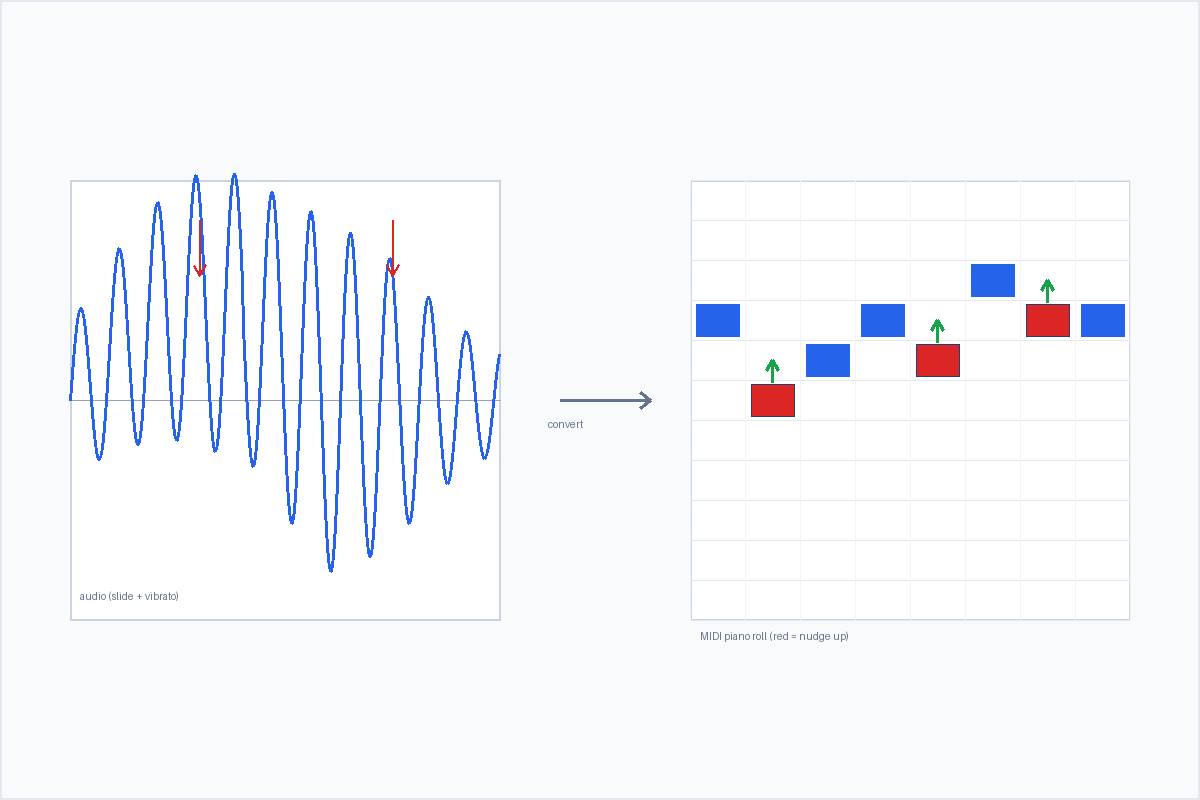
Why it happens. A pitch bend, a slide, a grace note, or vibrato makes the instantaneous fundamental frequency change continuously instead of sitting on a fixed note. The detector, which has to commit each moment to one semitone, quantises the glide or the wobble to a “wrong” neighbouring note. Microtonal inflections that sit between the twelve notes of equal temperament — blue notes, portamento between pitches, ornamented syllables — get hard-pulled to the nearest semitone. That is the detector faithfully reporting a sound that has no single pitch to report.
What makes it worse. Vocal slides and portamento (legato runs, the little glide on an onset, ad-lib falls), vibrato on a held note, melisma, and gospel, blues or soul bends will almost always trip this up; microtonal or heavily ornamented singing is the extreme case. By contrast, a clean steady piano single note or a stable synth lead has no bend, so it comes out in tune. The variable is the performance, not the software tier.
How to handle it. A few practical moves: spot the slide, vibrato and ornament positions in the detector’s pitch trace and nudge those notes by ear; choose a cleaner, less-bent take, or isolate the vocal from the backing; run a dedicated monophonic correction tool (Melodyne in single-note mode is the common one) on the exported line; or simply accept that a bend-heavy vocal converts into a draft you finish by hand. This is an essential pitch-detection limit — community reports about pro tools consistently note that even paid converters (the kind people pay around $80 for) mistrack bends too. Nobody blames the price, because the limit lives in the signal, not in the paywall. When you compare tools, judge how each one handles bends, not whether it is free.
The broader version of this wall is on the why MP3 to MIDI sounds out of tune page, and the polyphonic version (what happens with a full mix behind the voice) is on the polyphonic and dense mixes page.
Using the MIDI for harmony analysis
The point of converting a vocal is usually to read the melody, not just to play it back. Because the export is one Standard MIDI melody track, you can bring it into any DAW — Ableton, FL Studio, GarageBand, Logic, Reaper, or anything that opens Standard MIDI Files (the import steps are on the FL Studio / GarageBand and Ableton pages). Once it is a MIDI clip:
- See the exact intervals. The sung line becomes a row of notes you can measure, rather than something you have to find by ear.
- Build chords under it. Load a pad or keys sound and write the harmony that fits the melody you just extracted.
- Check the key and the phrasing. Read where the melody lands on the scale, how it resolves, and where the tension sits.
- Work at your own speed. Transpose it, slow the project down without changing pitch, and loop a tricky phrase — the note grid does not drift the way a waveform does.
That is the “harmony analysis” part done with notes instead of audio. One honest caveat: rather than guess whether any specific DAW ships a built-in audio-to-MIDI feature (those feature lists change across versions, and an incorrect claim helps no one), the route that is true everywhere is to convert to a .mid first and then import it. We only assert what we can verify — so we give you the file and let your DAW open it.
Getting the cleanest vocal result
If bent or shaky notes are your specific symptom, a few things move the needle before you even open the DAW:
- Isolate the vocal first. An a cappella take or a separated stem removes the backing that the detector would otherwise fight.
- Pick the steadiest take. Less vibrato and fewer slides means fewer notes to fix by hand.
- Fix the bends in the piano roll. Look at where the pitch trace wavers and nudge just those notes, leaving the clean ones alone.
- Use a monophonic corrector if you want polish. Running the exported line through a single-note correction tool catches the residual drift quickly.
- Treat bend-heavy material as a sketch. A soulful, sliding vocal was never going to land as a perfect transcription — finish it by hand and it is a great starting point.
Convert a vocal recording to MIDI